918Kiss on PC: Windows & Mac Emulator Guide
Published: 3 November 2026 · Reviewed by the M-Kiss918 editorial team
Quick answer: The easiest way to play 918Kiss on a computer is to install a reputable Android emulator such as BlueStacks, LDPlayer or MuMu Player, then install the official 918Kiss APK inside it. Allocate at least 4 GB of RAM and 2 CPU cores to the emulator, keep virtualisation enabled in your PC's settings, and log in with your normal player ID. A big screen helps fishing games most, but keep the same security and budget habits as on your phone.
Playing 918Kiss on a phone is convenient, but some players prefer a larger screen – especially for fishing games, where aiming is easier with a mouse and a 24-inch monitor. 918Kiss does not offer a widely used native desktop client, so most players run the Android version inside an emulator. This guide explains how to set one up on Windows or Mac, which settings matter and how to avoid the common problems. You will need the current 918Kiss APK installed to follow along.
What You Need
| Requirement | Minimum | Recommended |
|---|---|---|
| Operating system | Windows 10 or recent macOS | Windows 11 or latest macOS |
| RAM | 8 GB in the PC (4 GB for the emulator) | 16 GB in the PC |
| Storage | 5 GB free | 10 GB free on an SSD |
| CPU | Recent dual-core with virtualisation support | Quad-core or better |
| Internet | Stable broadband | Wired connection or strong Wi-Fi |
Choosing an Emulator
| Emulator | Strengths | Notes |
|---|---|---|
| BlueStacks | Widely used, simple interface, good compatibility | Can be heavy on older PCs |
| LDPlayer | Lighter, popular for gaming | Windows-focused |
| MuMu Player | Good performance on mid-range PCs | Check the latest version for your system |
| Android Studio emulator | Official Google tool | More technical; aimed at developers |
Download emulators only from their official websites. Unofficial bundles often include adware.
Step-by-Step Setup on Windows
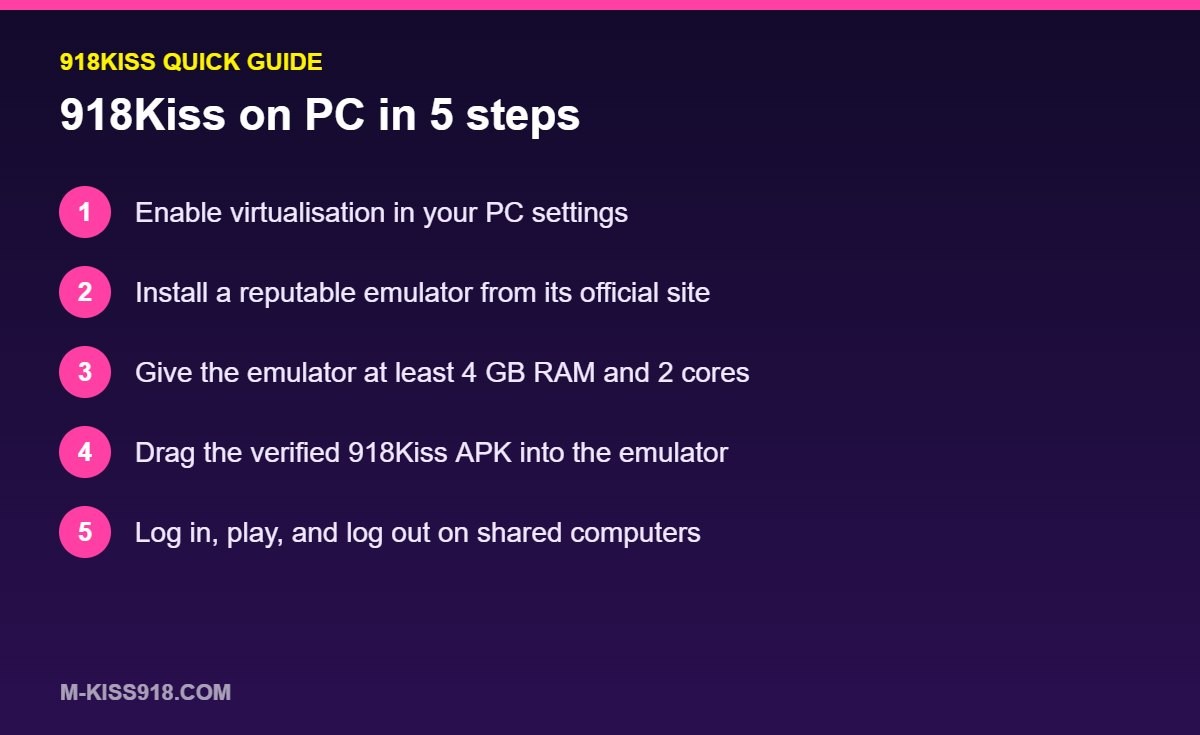
- Enable virtualisation (Intel VT-x or AMD-V) in your PC's BIOS/UEFI settings if it is not already on. Many emulators show a warning if it is disabled.
- Install your chosen emulator from its official site and open it.
- Allocate resources in the emulator settings: at least 4 GB RAM and 2 CPU cores.
- Download the 918Kiss APK from a verified source onto your PC.
- Drag and drop the APK into the emulator window, or use the emulator's "Install APK" button.
- Open 918Kiss inside the emulator and let the game files download.
- Log in with your player ID and password.
Setting Up on Mac
Mac support varies by emulator and by chip (Intel or Apple Silicon). Check that the emulator version you download supports your Mac model, then follow the same steps: install, allocate resources, drag the APK in and log in. Apple Silicon Macs generally need an emulator build designed specifically for them. If your PC struggles with emulators, the lighter XE88 download is worth trying.
Best Emulator Settings for 918Kiss
| Setting | Suggested value | Why |
|---|---|---|
| Resolution | 1280×720 or 1600×900 | Sharp without overloading the PC |
| Frame rate | 30–60 FPS | Smooth animations for fishing games |
| Graphics mode | Default or DirectX/OpenGL as recommended | Choose the one that runs smoothest |
| RAM | 4 GB or more | Prevents crashes when assets load |
| Root access | Off | Not needed and reduces security |
Fixing Common Emulator Problems
| Problem | Fix |
|---|---|
| Emulator very slow | Enable virtualisation, close other programs, allocate more RAM |
| 918Kiss stuck on loading | Check the internet connection and clear the app's cache inside the emulator |
| APK will not install | Download the APK again; make sure the emulator's Android version is supported |
| Black screen in games | Switch graphics mode in emulator settings |
| Mouse aiming feels off in fishing games | Adjust emulator mouse sensitivity or key mapping |
If the app itself is outdated, follow our 918Kiss update guide – the same steps apply inside an emulator.
Pros and Cons of Playing on PC
| Pros | Cons |
|---|---|
| Large screen, easier aiming in fishing games | Less convenient than a phone |
| No phone battery or overheating issues | Uses more electricity and PC resources |
| Comfortable for long table-game sessions | Easier to play for hours without noticing |
| Keyboard and mouse controls | Shared family PCs raise privacy concerns |
Security on a Computer
Treat the emulator like a second phone. Use a strong, unique password, log out when you finish – especially on shared computers – and never install "PC hacks" or "auto-win bots" for 918Kiss. These are a common way to spread malware. More security advice is in our 918Kiss safety guide.
Keeping Sessions in Check on a Big Screen
Long desktop sessions can pass very quickly. Set an alarm on your phone before starting, keep the same budget you would use on mobile and take a break away from the screen every 30 minutes. If fishing games are why you moved to PC, our winning strategies guide includes a shot-budget plan that works especially well with mouse aiming.
Key Mapping for Fishing Games
One of the biggest advantages of an emulator is custom controls. Most emulators let you map keys or mouse buttons to on-screen actions:
| Action | Suggested mapping | Benefit |
|---|---|---|
| Fire cannon | Left mouse button | Precise, fast aiming |
| Increase cannon level | Keyboard key such as E | Quick adjustment without tapping |
| Decrease cannon level | Keyboard key such as Q | Easy to drop cost when balance falls |
| Auto-fire toggle | Keyboard key such as F | Use sparingly with a shot budget |
| Lock target | Right mouse button | Focus on a chosen fish |
Remember that better aiming does not change capture probabilities – it only helps you hit the targets you choose. Keep your shot budget and cannon cost rules exactly as you would on mobile.
Running Two Apps Side by Side
Some emulators support multiple instances, letting you run 918Kiss in one window and another app in a second. Be careful with this: running two casino apps at once doubles how fast money can move and makes it much harder to keep track of your budget. If you use multiple instances at all, use them for convenience – for example, a support chat in one window – not for playing two games simultaneously.
Performance Tips for Older Laptops
- Close web browsers and other heavy programs before launching the emulator.
- Plug the laptop into power; battery-saving modes can throttle performance.
- Lower the emulator resolution to 1280×720 if animations stutter.
- Restart the emulator every few hours to clear memory.
918Kiss on PC FAQ
Can I play 918Kiss on a Windows PC?
Yes. Install a reputable Android emulator such as BlueStacks, LDPlayer or MuMu Player, then install the 918Kiss APK inside it.
Is there an official 918Kiss PC download?
Most players use the Android APK inside an emulator, as a widely used native desktop client is not commonly available.
Why is 918Kiss slow on my emulator?
Virtualisation may be disabled, or the emulator may need more RAM and CPU cores. Close other programs and check the emulator settings.
Can I use the same 918Kiss ID on PC and phone?
Yes, but log out of one device before using the other to avoid being logged out repeatedly.
Is it safe to play 918Kiss on an emulator?
It is as safe as your phone if you use official emulator downloads, the genuine APK and a strong password. Avoid "PC hacks" or bots.